

SERVER FEATURES
This page details all the exciting brutalChat features that deviate from vanilla minecraft.
Grief Prevention / Land Claims
To keep your builds and chests safe, brutalCraft uses a Land Claim system. You are granted a limited amount of space to claim at first, but the more you play the more you can claim. To learn the basics, watch this tutorial video.
Important Land Claim Commands:
/AbandonClaim – while standing inside one of your claims, it removes your ownership
/AbandonAllClaims – releases all land claims you have in brutalCraft
/Trust – allows a specific player to build in your claim
/UnTrust – revokes the right for another player to build in your claim
To adjust the boundaries of your claim, hold a golden shovel and look in the direction you wish to expand or shrink your claim in.
To expand the claim, use: /ExpandClaim X
To shrink the claim, use: /ExpandClaim -X
where X is the amount of blocks you wish to adjust the claim.
Alternatively, with golden shovel in hand right-click the corner of your claim border until it says ‘Resize Claim’, then right click where you’d like to move the corner.
!! Land claims can expire due to inactivity.
– Automatic chest-based claims which have not been expanded will automatically be released when the owner has been inactive for a week.
– Claims that have not been built on will expire after 2 weeks of inactivity from the owner.
– All of a player’s land claims – regardless of size – will be released after 60 days of player inactivity.
!! Be sure to read the brutalCraft rules regarding Land Claims and how to use the system appropriately.
PVP Toggle
brutalCraft does allow PVP, however it is opt-in. Use command /pvp to toggle your PVP status.
Nicknames / Name Color
Not everyone’s Minecraft account reflects how we know them in Twitch Chat or brutalChat. Use /nick to change your display name, and /namecolor to change it’s color. Click here for more details.
Be sure to read the brutalChat rules regarding what nicknames are and aren’t allowed.
Trading
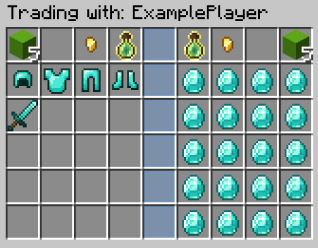
To initiate a trade with another player, shift + right-click them. (You can also use/trade in chat.)
The left side of the trade window represents your offer, while the right represents theirs.
Click the cube at the top of your trade to accept the trade.
Once both players accept, the trade will be accepted after a short countdown. You can even trade EXP!
!! You must be in close proximity to trade, even when using slash commands.
Gravestones

When you die in brutalCraft, a gravestone is left behind. Instead of your items being scattered about, they’re stored in your grave for an hour before it disappears. Make it back to your grave before the timer runs out to retrieve your items.
!! If you’re unsure of where your grave is, use the command /graves list to get the coordinates.
!! Anyone is able to loot a grave, although it might not be socially acceptable to loot one that’s not yours. Do so at your own risk.
Shop Chests: Selling
Shop Chests can be used to easily sell your wares to other players whether you’re online or offline.
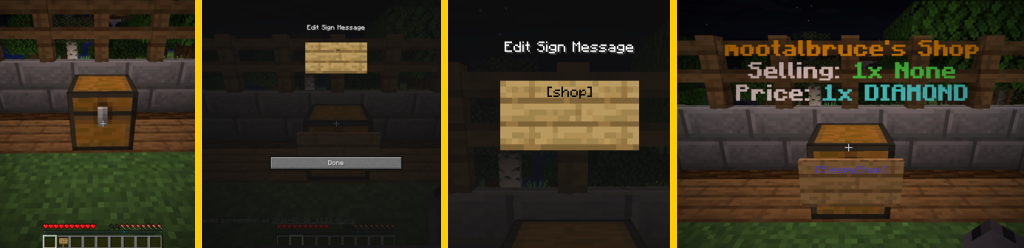
• To create a Shop Chest, start by placing a chest.
• Put a sign on the chest (hold crouch and right click with sign in hand) and write [shop] on it.
• Voila – you have created a shop chest.
!! You’re able to add additional text under the [shop] line on the sign if you so desire.

• Right click the sign to edit the Shop Chest settings.
• The Configuration menu that appears can be interacted with by clicking on the items as if they were buttons. Mouse over each item to see what it does.
• Click the chest icon in the middle to open up your Shop Item Settings.
• Drag whatever item you want to sell into the left 🚫 symbol, and replace the diamond on the right with whatever item you’d like to set as the price (or leave it alone to charge Diamond for your wares).
• Once you back out of this menu, your Shop Chest will be complete. Be sure to stock the chest with as many items as you’re looking to sell. When someone buys from your Shop, their payment will be placed inside the chest for you to collect later.
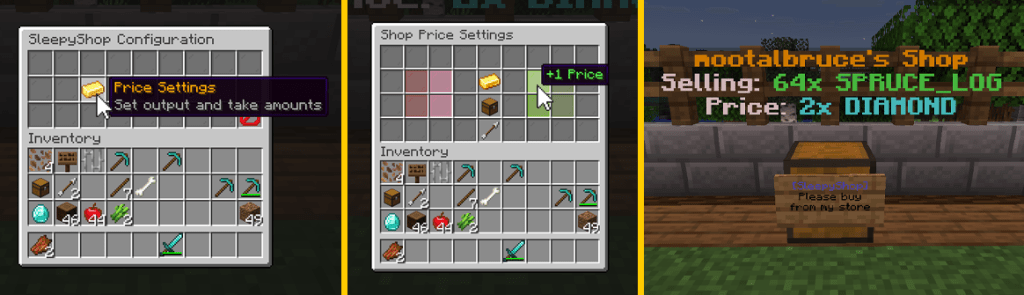
• Be sure to check out the other available settings while editing your Shop Chest.
• The Price Settings menu can adjust how many items you’re selling at a time, and how many items are required from a buyer for purchase.
• As in the previous menu, simply click on the buttons in the upper menu to adjust the values up and down.
Shop Chests: Buying
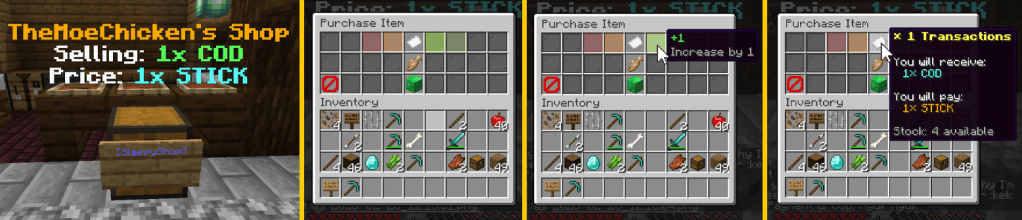
• To buy an item from someone else’s shop, right click the sign on the chest you wish to buy from.
• You can adjust how any items you’d like to buy using the colored squares at the top.
• Mouse over the paper icon to review your transaction.
• Click the green box at the bottom to purchase. You should see a ‘Purchase Successful!’ message in chat.
!! You cannot buy from your own Shop Chest, as right clicking will take you to the settings menu.
Mobs
Phantoms and Drowned are disabled because I hate them.